Event Panel
When you run Window > Event (⇧⌘E) menu, Event Panel will be shown. You can add events like Scroll Animator or Variable .
Scroll Animator
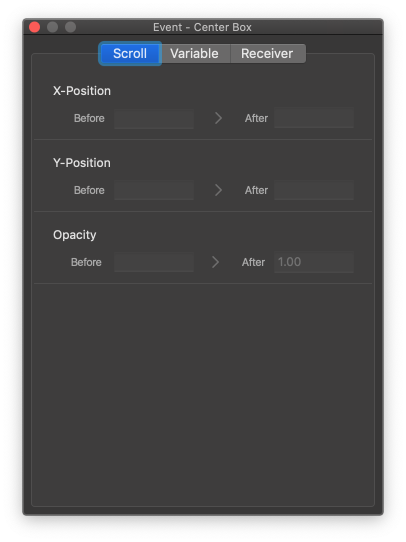
Add Scroll Animator to animate widget by scrolling. When the target widget appear in the middle of browser, the selected value will transform from before to after.
X-Position: Add Scroll Animator to X-Position.Y-Position: Add Scroll Animator to Y-Position.Opacity: Add Scroll Animator to Opacity.
Variable
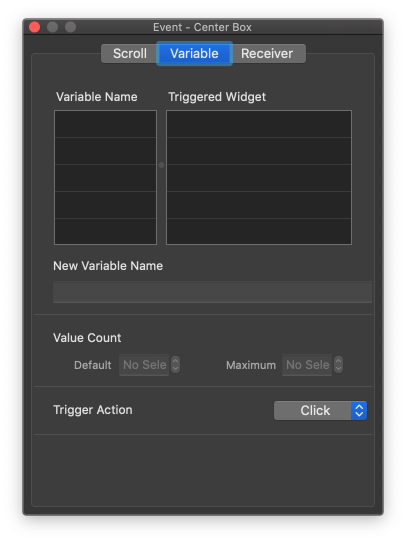
Add Variable to the selected widget.
Variable Name: Show Variable list in your project.Triggered Widget: Show Triggered widget list according to the selected variable.New Variable Name: Add a new variable name.Value Count: Set Default & Maximum value to the variable.Trigger Action: Set Trigger Action to the selected widget.
Receiver
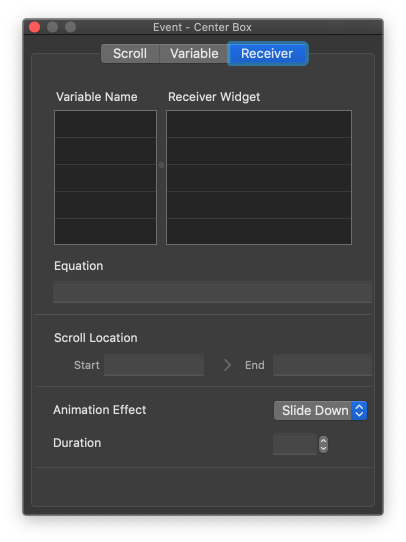
Add Receiver Event to the selected widget. When Equation returns True, Receiver Event will be shown.
Variable Name: Show the list of variables that have Receiver Event.Receiver Widget: Show the list of Receiver Widget according to the selected variable.Equation: Set Equation case. (e.g. Sample Variable = 1)Scroll Location: Set Equation range of the scroll position.Animation Effect: Set Animation Effect when Receiver Event is run.Duration: Set Duration for the Receiver Event.