Navigation
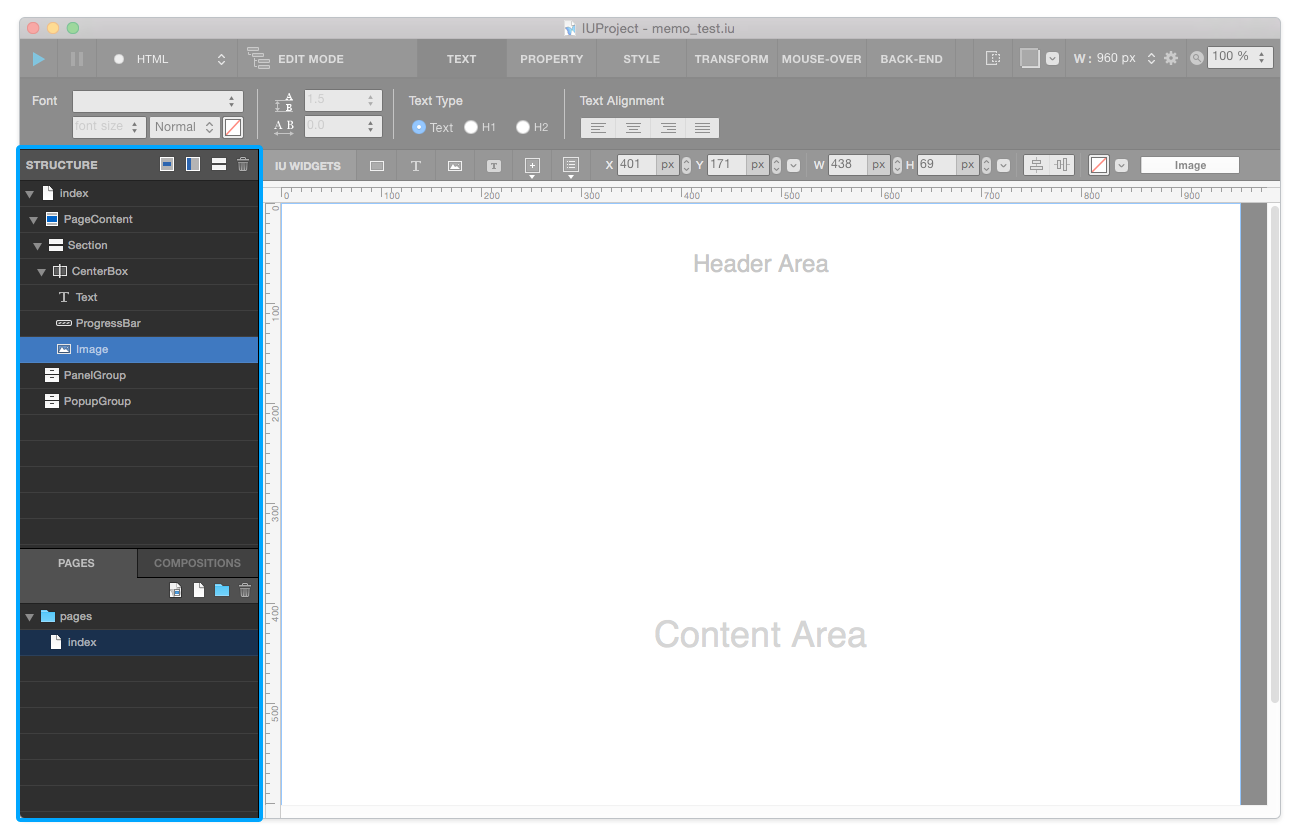
Navigation area is at the left side of canvas. Three key elements are Structure , Page ,and Composition.
Structure
The components of the current page (section, header, footer, page content, widget, …) can be seen in this area.
You can rearrange, remove, rename, and hide widgets from the structure.
Add New Popup: Add a popup widget into the current page.Add New Panel: Add a panel widget into the current page.Add New Section: Add a section to the page content.Delete: Delete the selected element.
Page
Page tab shows the list of pages/groups included in the current project. You can add, remove, and rename pages/groups.
Add New Custom Page Button: Adds a new custom page.Add New Page Button: Adds a new page.Add New Group Button: Adds a new group.Delete Button: Delete the selected page or group.
Composition
Composition tab shows the design compositions of the current project. You can add, remove, and rename composition & group.
Add New Custom Composition Button: Adds a new custom composition.Add New Composition Button: Adds a new composition.Add New Group Button: Adds a new group.Delete Button: Delete the selected composition or group.
References
How to rename widget, page, and group
Select the item (widget, page, or group) you want to rename
Press Enter or Tab key
Type new name as you want
Press Enter Key
Note
You can not use these names : id / ifdef / default